What AI Sprite Generators Do
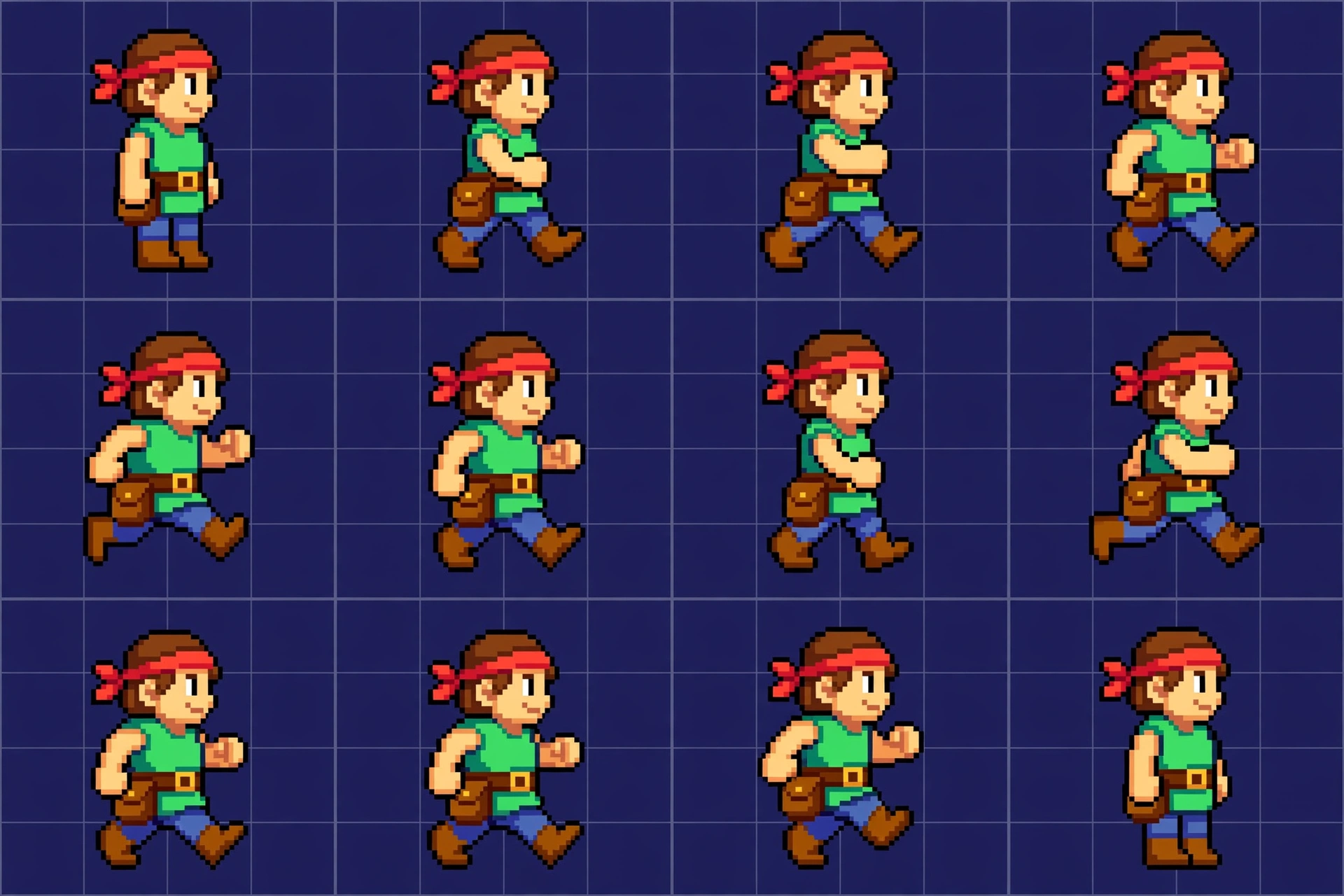
AI sprite generators produce 2D game character art, items, tilesets, and animated sprite sheets from a text prompt or reference image, replacing much of the manual pixel-art and frame-by-frame drawing work that traditionally slowed down indie game development. What used to require hours of hand-drawn frames or an outsourced artist can now be produced in seconds, though the output typically needs some cleanup before it is truly game-ready.
Types of AI Sprite Tools
Pixel-Art Specialists
These focus specifically on small, retro-style sprites (commonly 8×8 to 32×32 pixels), often including a style-lock feature that keeps the palette, resolution, and proportions consistent across an entire character roster.
All-in-One Game Asset Platforms
Broader platforms generate sprites alongside other game assets, backgrounds, concept art, and sometimes music or code, aimed at developers who want one tool covering more of the production pipeline rather than switching between specialists.
General Image Generators Adapted for Sprites
General-purpose AI image models, sometimes combined with pixel-art style presets or add-ons, can produce game art but usually lack dedicated sprite-sheet export or animation tooling built specifically for game engines.
Animation-Focused Tools
Some tools specialise in animating a single existing sprite, generating walk cycles and frame sequences from one source image rather than creating original character art from scratch.
What to Compare Across Sprite Generators
| Factor | Why it matters |
|---|---|
| Style consistency | Critical for a cohesive game; some tools lock palette and proportions across all generated assets |
| Sprite sheet & engine export | Check for direct export to Unity, Godot, or GameMaker rather than single static images |
| Animation support | Not all tools generate full walk cycles or frame sequences, some produce single poses only |
| Pricing model | Ranges from free-with-watermark to per-generation usage pricing and flat monthly subscriptions |
| Post-processing need | Raw AI output rarely works as a drop-in asset without some manual cleanup |
How to Choose the Right Tool
- Match the tool to your art style first (pixel art vs higher-resolution 2D) since specialists tend to outperform generalists in their focus area
- Prioritise sprite-sheet and game-engine export if you need production-ready animation, not just static concept images
- Test the free tier on a real character from your project before committing to a paid plan
- Budget time for manual cleanup, since even the best tools rarely produce perfectly game-ready output on the first try
Frequently Asked Questions
Can AI sprite generators create full character animations?
Some can, generating walk cycles and multi-frame sequences, while others only produce single static poses or images, so checking animation support before choosing a tool matters for developers who need moving characters.
Do AI-generated sprites work directly in game engines like Unity or Godot?
Many tools now export sprite sheets formatted for popular engines, but this varies by platform, so confirming engine-specific export support is worth checking before relying on a tool for production assets.
Is AI sprite generation good enough to replace a pixel artist?
For prototyping and solo/indie projects with limited budgets, AI sprite tools can meaningfully reduce production time, though most output still benefits from manual polish, and complex or highly stylised projects may still favour dedicated artists.
Are AI sprite generators free to use?
Many offer a free tier, often with watermarks or limited credits, with paid plans unlocking higher resolution, more generations, or commercial licensing.
A Worked Example: From Prompt to Playable Sprite Sheet
Imagine an indie developer making a small top down adventure game. She needs a hero character who can walk in four directions. She has no pixel artist on the team. She starts with one character, not a full cast, because one good sprite teaches her the whole workflow.
She writes a tight prompt. She names the size, the style, and the palette. For example: 32 by 32 pixels, 16 bit style, four colours plus outline, a hero with a red cloak and a plain background. She generates a front facing idle sprite first. She checks it at actual game size, not zoomed in. If the sprite reads clearly at 32 pixels, she has a keeper. If it looks muddy, she changes the prompt before she generates more frames.
Next, she generates the walk frames and the other directions. She keeps the same palette and the same outline width across every frame. She loads the frames into Aseprite or a similar editor. She checks that the cloak, the boots, and the face stay in the same place from frame to frame. Small jumps in position make animation look shaky, so she nudges frames by hand until movement feels smooth.
Then she exports a sprite sheet and tests it in her game engine. She walks the hero across a test level. She checks speed, spacing, and collision size. She checks that the sprite still reads against grass, stone, and water tiles. Only after this test does she generate the next character, using the first sprite as a style reference. This keeps the whole cast consistent.
The lesson is simple. Generate small, check at real size, fix by hand, and test in the game. Tools speed up the first draft. Human eyes and engine tests turn that draft into a sprite players can actually use.
Pitfalls That Ruin Sprite Quality
The first pitfall is fake pixel art. Many general image tools produce a smooth illustration in a pixel art style, then shrink it down. The result looks soft, uses too many colours, and breaks at small sizes. True pixel art sits on a strict grid with a limited palette. If a tool cannot generate on a grid, use it for concept art only, then redraw the sprite by hand or with a dedicated pixel tool.
The second pitfall is palette drift. Each new generation can shift colours slightly. Over ten characters, those shifts add up, and the game starts to look messy. Lock the palette early. Save the exact colours you use. Feed the same palette into every prompt. Check new sprites against the old ones before you accept them.
The third pitfall is ignoring animation needs. A single pretty sprite is not a game asset. You need idle, walk, and action frames that line up. You need consistent facing directions. Tools that offer skeleton animation or rotation, such as PixelLab, save hours here. If your tool only makes single images, budget time to draw the missing frames yourself.
The fourth pitfall is skipping the licence check. Free tiers often make outputs public or limit commercial use. Paid plans usually grant commercial use, but terms differ by tool. Check the terms for your plan before you ship. Keep a record of which tool and plan produced each asset. That record protects you if a store or publisher asks about ownership later.
Can AI sprites be used in a commercial game?
Yes, in many cases, but only under the terms of the tool and plan you used. PixelLab, Retro Diffusion, Sprite AI, and Adobe Firefly all allow commercial use on suitable plans, according to their own terms. Free tiers are the risky area, because outputs may be public or non commercial. Read the current terms for your exact plan, keep proof of payment, and avoid mixing free tier art into a paid game unless the terms clearly allow it.
What size should I generate sprites at for Unity or Godot?
Generate at the size your game will actually display. For a retro style game, that often means 16 by 16 or 32 by 32 pixels for small characters, and 64 by 64 for larger heroes. Do not generate at 1024 pixels and shrink the result, because shrinking adds blur and extra colours. If you need a larger display size, scale up in the engine with point filtering, so edges stay crisp. Test the sprite in the engine at real size before you generate the full set.
Final Thoughts
AI sprite generators have become a genuinely useful part of the indie game development stack, cutting down the time spent on manual pixel art and character animation. The right tool depends on your specific art style and whether you need full sprite-sheet and engine export or just quick concept images, and budgeting time for post-processing remains part of a realistic workflow regardless of which tool you choose.
Related reading: AI Jingle Generator and Cici AI Image Generator.
About the author: The AI Uptrend editorial team covers AI tools, platforms, and industry trends to help readers evaluate new technology with a clear, practical lens.